Inference#
Ultralytics Platform provides browser-based inference for testing trained models and dedicated endpoints for programmatic access.
Predict Tab#
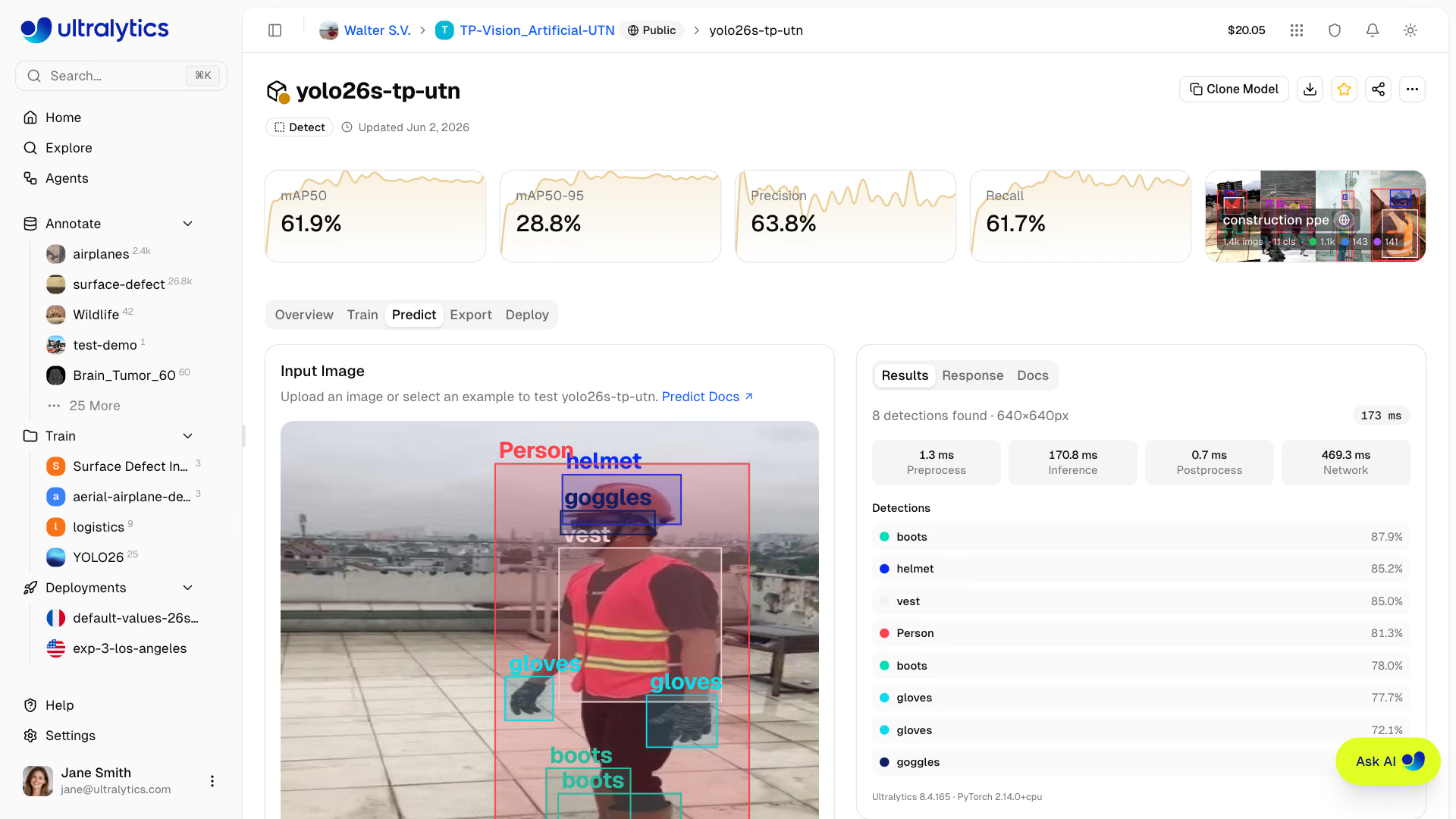
Every model with weights includes a Predict tab for browser-based inference:
- Navigate to your model
- Click the Predict tab
- Upload an image, use an example, or open your webcam
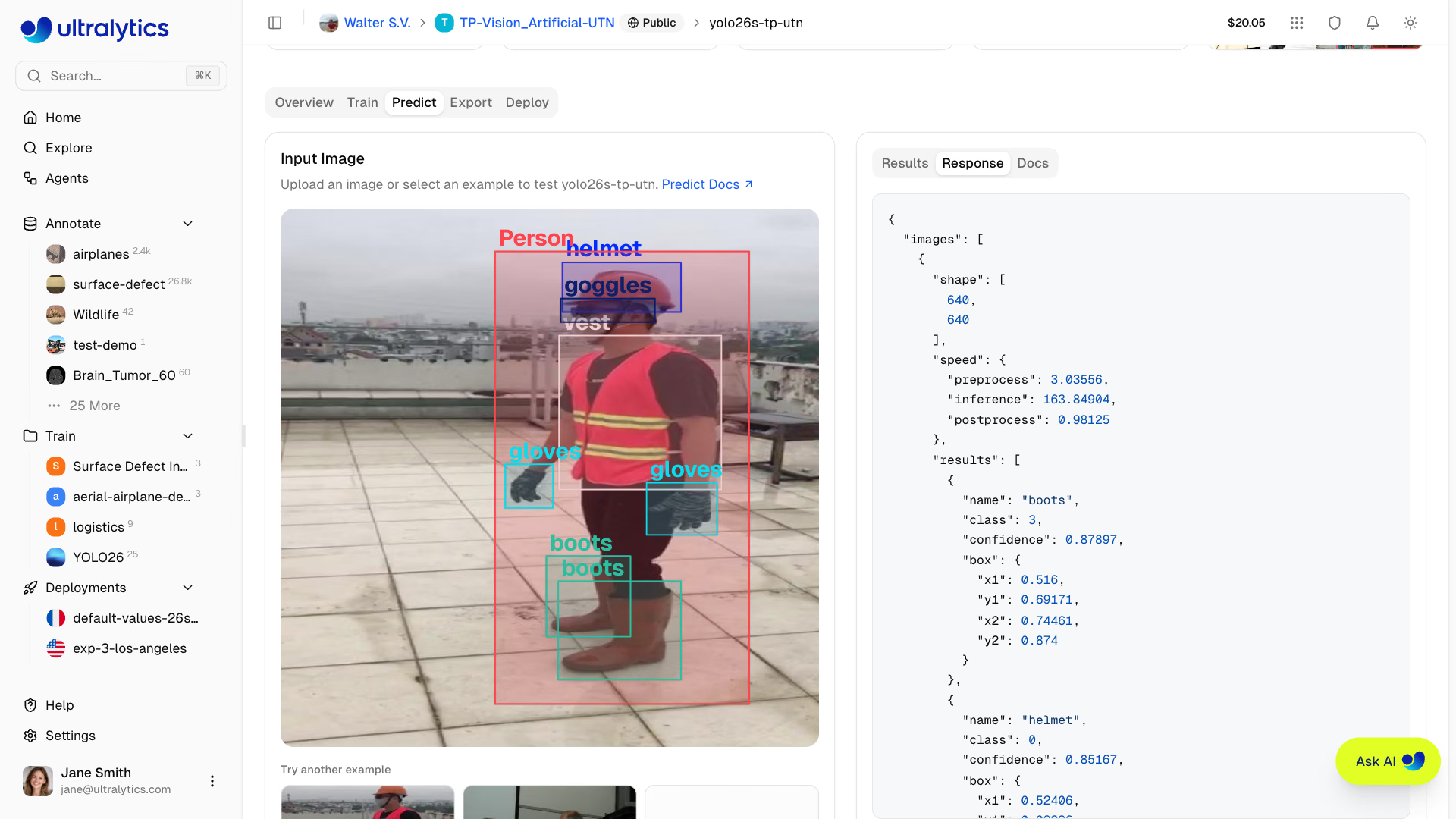
- Review the task-specific overlay, prediction summary, timing, and raw response
Models without weights show an empty state instead — train the model or upload weights first.
Input Methods#
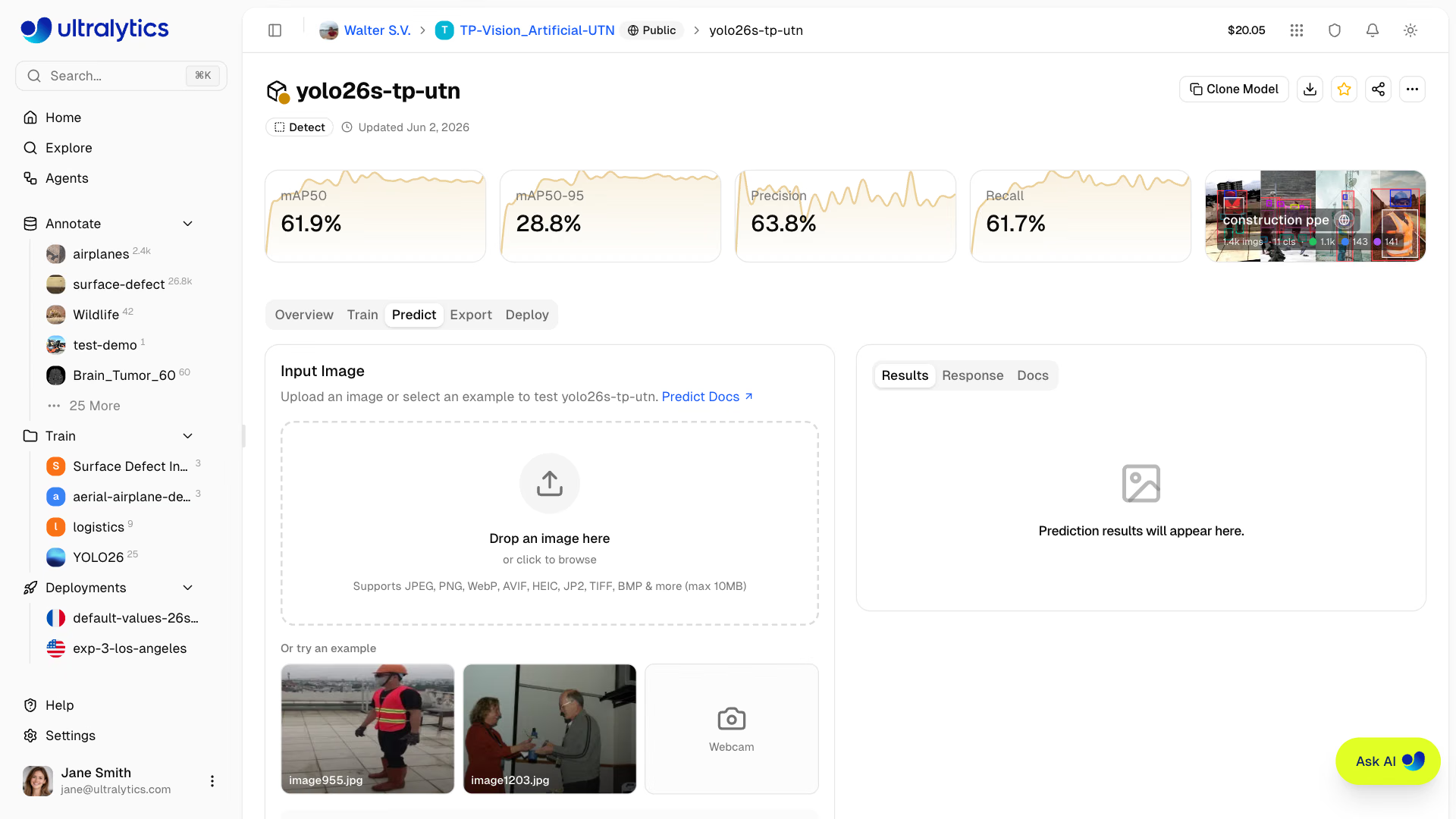
The predict panel supports multiple input methods:
| Method | Description |
|---|---|
| Image upload | Drag and drop or click to upload an image |
| Example images | Click built-in examples (dataset images or defaults) |
| Webcam capture | Live camera feed with single-frame capture |
| IP camera | RTSP or RTSPS stream on your own deployment |
graph LR
    A[Upload Image]:::start --> D[Auto-Inference]:::proc
    B[Example Image]:::start --> D
    C[Webcam Capture]:::start --> D
    D --> E[Results + Overlays]:::out

    classDef start fill:#4CAF50,color:#fff
    classDef proc fill:#2196F3,color:#fff
    classDef out fill:#9C27B0,color:#fff
Upload Image#
Drag and drop or click to upload:
- Supported formats: JPEG, PNG, WebP, AVIF, HEIC, JP2, TIFF, BMP
- Max size: 10 MB
- Auto-inference: Results appear automatically after upload
The predict panel runs inference automatically when you upload an image, select an example, or capture a webcam frame. No button click is needed.
Before uploading, the panel resizes the image so its longest side matches the selected Image Size, and requests normalized coordinates. This keeps browser testing fast; requests you send yourself are not resized.
Example Images#
The predict panel shows up to two example images from your model's linked dataset, preferring the val split, then
test, then train. If no dataset is linked, default examples are used:
| Image | Content |
|---|---|
bus.jpg | Street scene with vehicles |
zidane.jpg | Sports scene with people |
For OBB models, aerial images of boats and an airport are shown instead.
Example images are preloaded when the page loads, so clicking an example triggers near-instant inference with no download wait.
Webcam#
Select Webcam above the image area to start a live camera feed:
- Grant camera permission when prompted
- Click the video preview to capture a frame
- Inference runs automatically on the captured frame
- Click Back to webcam to return to the live feed
On your own deployment's Predict tab, the webcam runs inference continuously instead. See
Live Camera Inference.
View Results#
Inference results display the output appropriate to the model task: boxes, masks, keypoints, oriented boxes, classification scores, semantic coverage, or a depth map. Object results use the dataset class colors when available. The panel also shows preprocess, inference, postprocess, and network timing.
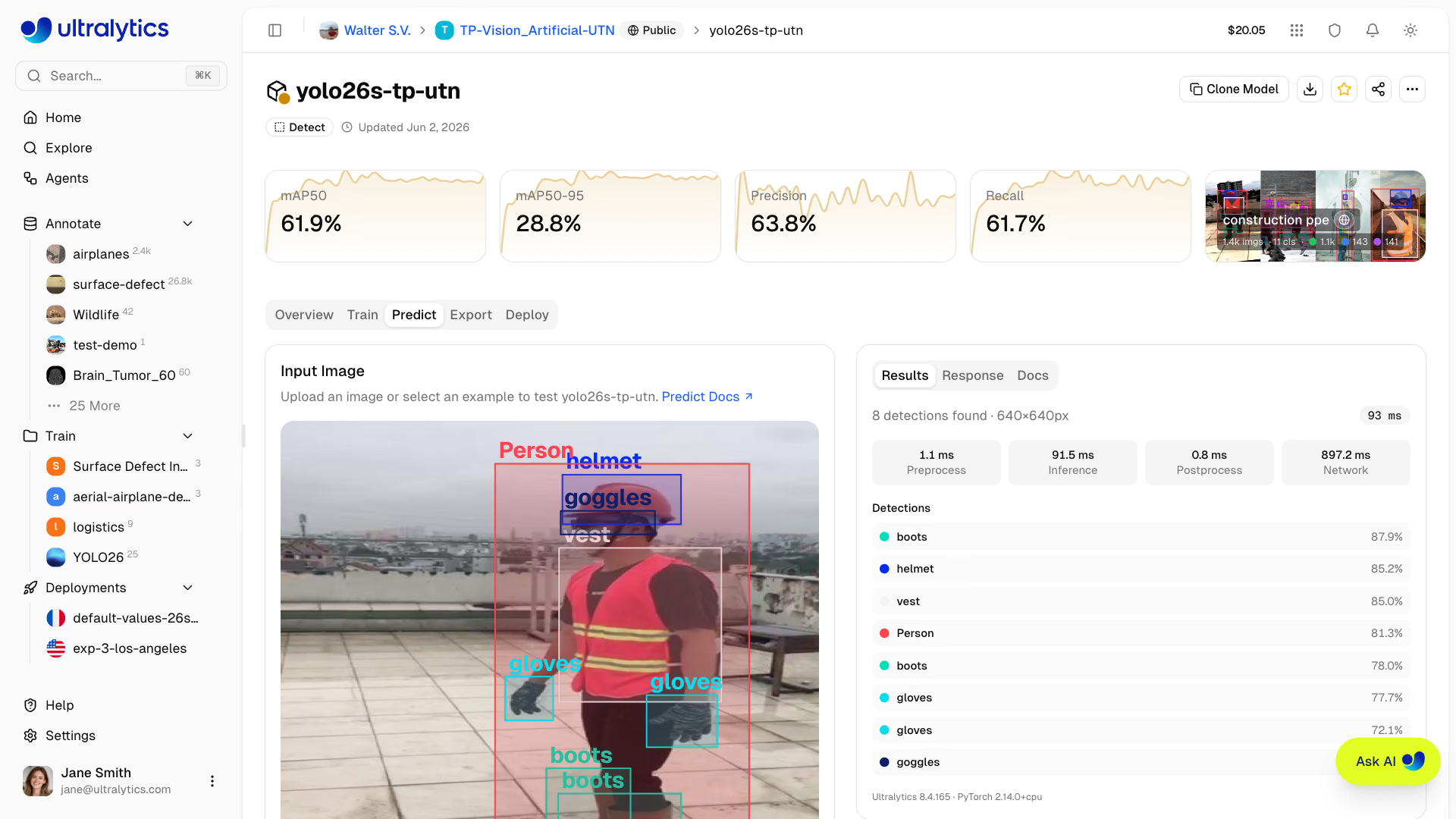
The results panel shows:
| Field | Description |
|---|---|
| Results summary | Per-detection list, or the top 5 classes for classification and semantic models |
| Speed stats | Preprocess, inference, postprocess, and network (ms) |
| Versions | Ultralytics and PyTorch versions, plus depth range or mask size where applicable |
| JSON response | Raw API response in a code block, with base64 map data elided |
Two controls sit over the preview once results are in: click the image to enlarge it with overlays intact, and use the download button to save an annotated JPEG of the current result.
Inference Parameters#
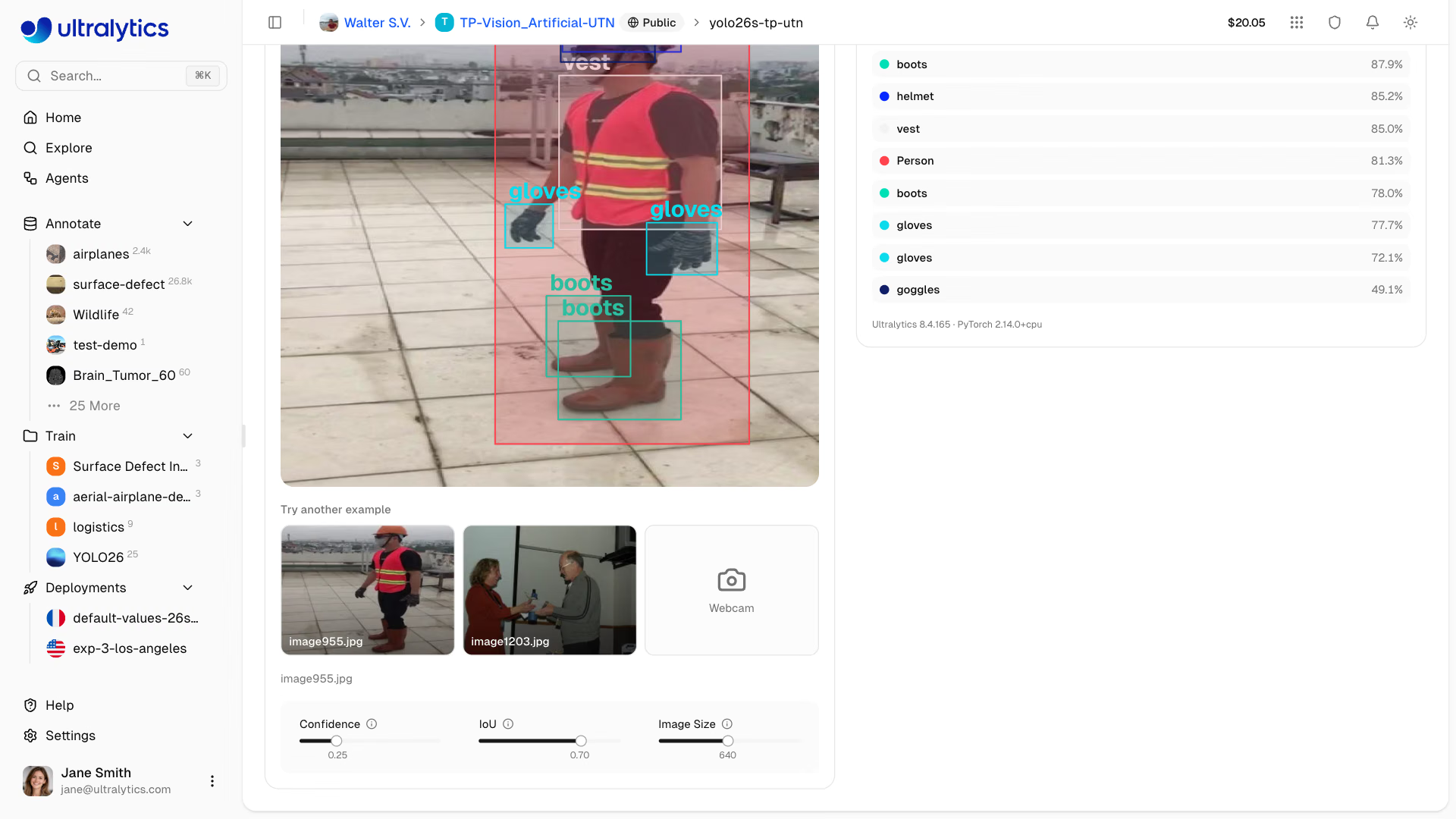
Adjust inference behavior with the three sliders below the image (depth models show only Image Size):
| Parameter | Range | Default | Description |
|---|---|---|---|
| Confidence | 0.01 – 1.0, steps of 0.01 | 0.25 | Minimum confidence threshold |
| IoU | 0.0 – 0.95, steps of 0.01 | 0.7 | NMS IoU threshold |
| Image Size | 32 – 1280, steps of 32 | 640 | Input resize dimension |
Changing any parameter automatically re-runs inference on the current image with a 500ms debounce. No need to re-upload.
Confidence Threshold#
Filter predictions by confidence:
- Higher (0.5+): Fewer, more certain predictions
- Lower (0.1-0.25): More predictions, some noise
- Default (0.25): Balanced for most use cases
IoU Threshold#
Control Non-Maximum Suppression:
- Higher (0.7+): Allow more overlapping boxes
- Lower (0.3-0.5): Suppress overlapping detections more aggressively
- Default (0.7): Balanced NMS behavior for most use cases
Deployment Predict#
Each running dedicated endpoint includes a Predict tab on its deployment page. This uses the deployment's own inference service rather than the shared predict service, letting you test your deployed endpoint from the browser.
On a ready endpoint, processed images also contribute to the Monitoring tab. Its examples and aggregate charts are lightweight, temporary data held in memory; stopping, restarting, redeploying, resizing, or replacing the model can clear them. Save examples to a dataset to keep them.
Live Camera Inference#
On the Predict tab of a deployment you own, select Webcam or IP camera to run the endpoint on live video:
| Source | How it works |
|---|---|
| Webcam | The browser sends frames to the endpoint one at a time and draws each result over the live feed |
| IP camera | Enter an rtsp:// or rtsps:// URL, including any credentials, and click Connect; the endpoint reads the camera and streams each result back |
Live inference uses the endpoint's bound API key, which only the workspace owner can load; for other team members the
webcam captures single frames and IP camera is unavailable, as on a model's Predict tab. The IP camera must be
reachable from the internet: the endpoint refuses local network addresses such as 192.168.x.x. Each result is for the
newest frame, so frames are skipped when inference falls behind. Slider changes apply to the next webcam frame and
restart an IP camera stream. Live inference pauses while the browser tab is hidden. Click the preview to capture a
frame, or Disconnect to stop viewing the IP camera.
Background Camera#
An endpoint with a custom CPU and memory size can keep watching one IP camera after you disconnect or close the page. Once the connected camera shows results, turn on Keep running in the background. The deployment header shows Camera on, and results go to the Monitoring tab as temporary examples and prediction statistics.
- Settings: The background camera always uses the default confidence (0.25), IoU (0.7), and the model's training image size; the sliders do not apply to it.
- Cost: It runs on the endpoint's warm instance at no extra charge; the hourly uptime rate applies whether the camera is on or off.
- Changes: Turning the camera on, off, or to another camera restarts the endpoint's instance, which keeps the endpoint ready but clears its temporary monitoring data.
- Stopping: Turn the switch off. Disconnecting or closing the page does not stop it, and resizing the endpoint to the default size removes it. If the camera goes offline, the endpoint keeps reconnecting.
- Endpoint lifecycle: Stopping the endpoint stops the camera and the charges; starting it again resumes the saved camera.
Default-size endpoints offer live webcam and IP camera inference without the background option. To save a background
camera from the API, use the deployment camera action.
Stream Results from the API#
Send an RTSP or RTSPS URL as source with the Accept: text/event-stream header to a dedicated endpoint URL to
receive results as server-sent events:
curl -N -X POST \
  "https://YOUR_DEPLOYMENT_URL.run.app/predict" \
  -H "Authorization: Bearer YOUR_API_KEY" \
  -H "Accept: text/event-stream" \
  -F "source=rtsp://user:password@camera.example.com:554/stream" \
  -F "conf=0.25"
Each frame event carries images in the response shape with normalized (0-1) coordinates, a preview
JPEG data URL of the frame, and metadata with the task and class names. Only conf, iou, and imgsz apply, and
streaming the endpoint's background camera URL uses its default settings. Events with only a status carry no frame,
and an event with an error message (the camera could not be read, or the endpoint cannot run the model) ends the
stream. The stream also closes when the endpoint restarts or the request reaches its time limit, so reconnect with a
backoff when it ends without an error. The Platform API's deployment predict route and SDK do not stream; send camera
requests to the endpoint URL with its bound API key. A camera source without the header returns 400.
Dedicated Endpoint API#
The API Docs card in the model Predict tab contains example Python, JavaScript, and cURL requests, pre-filled with
the confidence, IoU, and image size currently set on the sliders. The URL and key are placeholders until you deploy the
model — a Deploy button next to the code tabs jumps to the model's Deploy tab. After deployment, the Docs
result tab in the deployment page's Predict tab fills in that endpoint's URL and, for workspace owners, its bound API
key, ready to copy and run.
Authentication#
Include your API key in requests:
Authorization: Bearer YOUR_API_KEYTo run inference from your own scripts, notebooks, or apps, include an API key. Generate one in Settings > API Keys. A dedicated endpoint accepts only the single key it was created with; the shared model API accepts any active key in the workspace, and public models also accept anonymous requests.
Endpoint#
Dedicated endpoints take requests on their own URL:
POST https://YOUR_DEPLOYMENT_URL.run.app/predictShared inference uses the Platform API with the model's full path:
POST https://platform.ultralytics.com/api/models/{owner}/{project}/{model}/predictBoth accept the same multipart/form-data body and return the same response shape. With the
Python SDK, use client.models.predict(owner, project, model, body=...) for shared
inference or client.deployments.predict(owner, deployment, body=...) for a dedicated deployment. Both SDK methods call
the Platform API, so its rate limits and request size limit apply. To avoid them, post directly to a
dedicated endpoint URL as shown under Request. Shared inference example:
from ultralytics_platform import Platform

client = Platform()  # reads ULTRALYTICS_API_KEY
with open("image.jpg", "rb") as f:
results = client.models.predict("acme-vision", "inspection", "v3", body={"file": f, "conf": 0.25})Request#
import requests

url = "https://YOUR_DEPLOYMENT_URL.run.app/predict"
headers = {"Authorization": "Bearer YOUR_API_KEY"}
data = {"conf": 0.25, "iou": 0.7, "imgsz": 640}

with open("image.jpg", "rb") as image_file:
    response = requests.post(url, headers=headers, files={"file": image_file}, data=data)
print(response.json())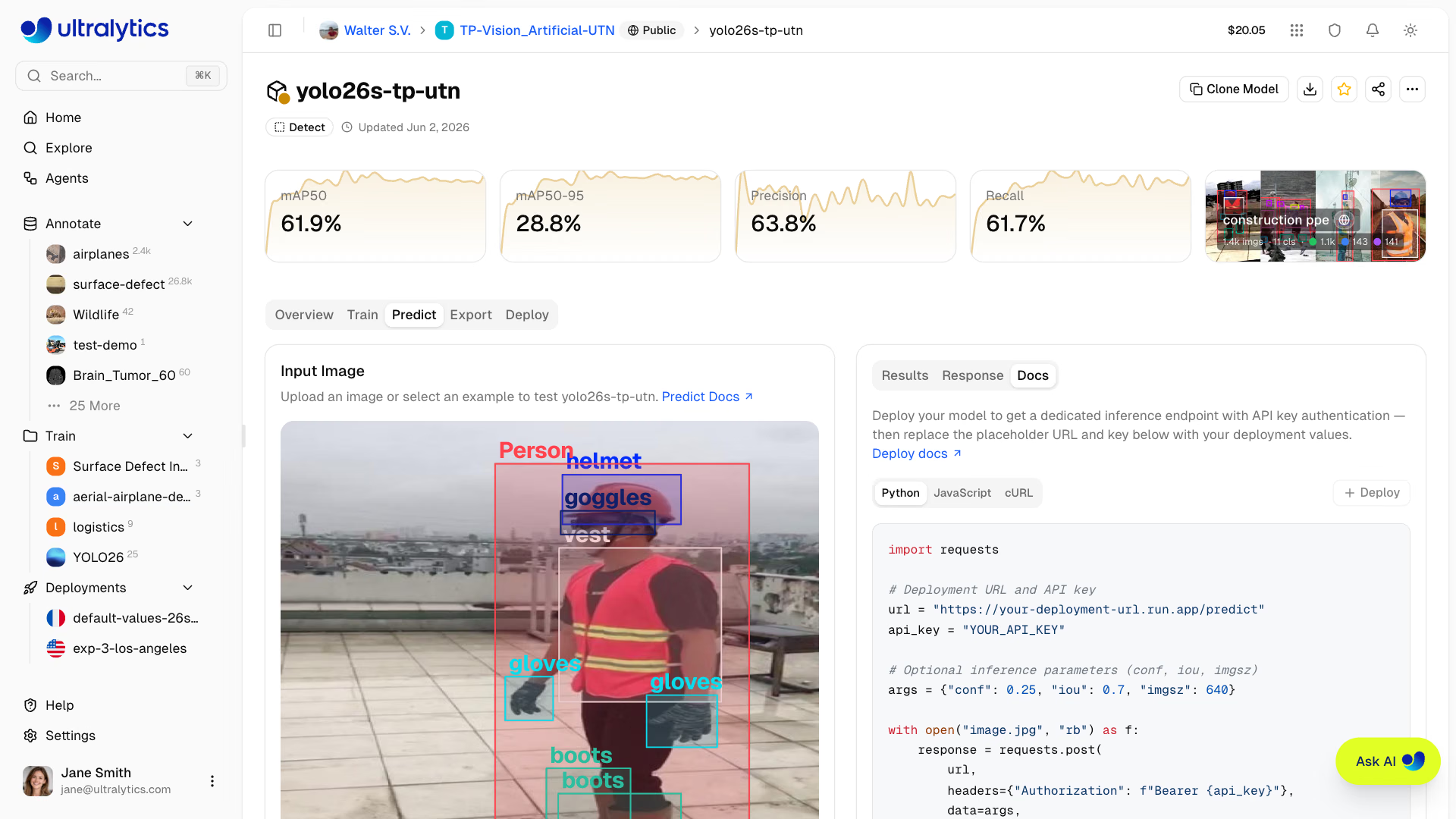
Request Parameters#
| Parameter | Type | Default | Range | Description |
|---|---|---|---|---|
file | file | - | - | Image or video file (required unless source set) |
conf | float | 0.25 | 0.01 – 1.0 | Minimum confidence threshold |
iou | float | 0.7 | 0.0 – 0.95 | NMS IoU threshold |
imgsz | int | - | 32 – 1280 | Input image size in pixels; defaults to the model's training size (640 if unavailable) |
normalize | bool | false | - | Return bounding box coordinates as 0 – 1 |
decimals | int | 5 | 0 – 10 | Decimal precision for coordinate values |
vid_stride | int | 1 | ≥ 1 | Predict every Nth video frame; images ignore it |
bits | int | 8 | 8, 12, 16 | Depth map quantization, depth models only |
source | string | - | - | Image URL or base64 string (alternative to file); max 4,096 characters via Platform API |
Response#
{
    "images": [
        {
            "shape": [1080, 1920],
            "results": [
                {
                    "class": 0,
                    "name": "person",
                    "confidence": 0.92,
                    "box": { "x1": 100, "y1": 50, "x2": 300, "y2": 400 }
                },
                {
                    "class": 2,
                    "name": "car",
                    "confidence": 0.87,
                    "box": { "x1": 400, "y1": 200, "x2": 600, "y2": 350 }
                }
            ],
            "speed": {
                "preprocess": 1.2,
                "inference": 12.5,
                "postprocess": 2.3
            }
        }
    ],
    "metadata": {
        "imageCount": 1,
        "classNames": ["person", "bicycle", "car", "..."],
        "functionTimeAlive": 1284.51,
        "functionTimeCall": 0.018,
        "task": "detect",
        "version": {
            "ultralytics": "8.x.x",
            "torch": "2.6.0",
            "torchvision": "0.21.0",
            "python": "3.13.0"
        }
    }
}
Response Fields#
| Field | Type | Description |
|---|---|---|
images | array | List of processed images, one entry per processed video frame |
images[].shape | array | Image dimensions [height, width] |
images[].results | array | List of detections |
images[].results[].class | int | Class index (integer ID) |
images[].results[].name | string | Class name |
images[].results[].confidence | float | Detection confidence (0-1) |
images[].results[].box | object | Bounding box coordinates |
images[].semantic_mask | object | Per-pixel class map (semantic models only) |
images[].depth | object | Per-pixel depth map (depth models only) |
images[].speed | object | Processing times in milliseconds |
metadata | object | Image count, model class names, service timings, task, and versions |
Task-Specific Responses#
Response format varies by task:
{
  "class": 0,
  "name": "person",
  "confidence": 0.92,
  "box": {"x1": 100, "y1": 50, "x2": 300, "y2": 400}
}
Rate Limits#
The shared model API is limited to 20 requests/minute for each API key, signed-in caller, or anonymous IP. The
Platform deployment predict route (POST /api/deployments/{owner}/{deployment}/predict) has the same limit. When
throttled, the API returns 429 with a Retry-After header. See the full
rate-limit reference for all endpoint categories.
Requests sent directly to a dedicated endpoint do not pass through the Platform API rate limiter. The endpoint still sheds load with 429 and a Retry-After header when it is temporarily at capacity. For high-volume local inference, see the Predict mode guide.
Error Handling#
Common error responses:
| Code | Message | Solution |
|---|---|---|
| 400 | Invalid image | Check file format, or that the model has trained weights |
| 401 | Unauthorized | Verify API key |
| 404 | Model not found | Check the owner, project, and model names |
| 413 | Input too large | Reduce the file size below the endpoint limit |
| 429 | Rate limited | Wait and retry, or send requests directly to a dedicated endpoint |
| 500 | Server error | Retry request |
| 503 | Service unavailable | Predict service starting up or unreachable; wait briefly and retry |
FAQ#
Both inference methods accept video files:
- Dedicated endpoints accept video files directly. Supported formats (up to 32 MB per request): ASF, AVI, GIF, M4V, MKV, MOV, MP4, MPEG, MPG, TS, WEBM, WMV. Results are returned per processed frame, and a request may run for up to 1 hour. See dedicated endpoints for details.
- Shared inference (
POST /api/models/{owner}/{project}/{model}/predict) uses the same predict service and accepts the same video formats, but requests are limited to about 4.5 MB and time out after about 30 seconds, which suits only short clips. The browser Predict tab uploads images only, so use a dedicated endpoint for video files, or Live Camera Inference for a webcam or IP camera.
Depth models do not accept video files.
In the Predict tab, the download button over the preview saves the current result as an annotated JPEG. The API itself returns JSON predictions. To visualize those:
- Use predictions to draw boxes locally
- Run the model locally with Ultralytics and save the annotated result with
save()(or get an array withplot()):
from ultralytics import YOLO

model = YOLO("yolo26n.pt")
results = model("image.jpg")
results[0].save("annotated.jpg")
See the Predict mode documentation for the full results API and visualization options.
- Predict tab limit: 10 MB
- Shared inference API limit: about 4.5 MB per request, including through the Python SDK
- Dedicated endpoint limit: 32 MB per request sent directly to the endpoint URL
- Auto-resize in the Predict tab: Images are resized to the selected
Image Sizebefore upload
Large images are automatically resized in the browser while preserving aspect ratio. Requests you send yourself are not resized, so requests above the limit are rejected with
413.The current API processes one image per request. For batch:
- Send separate requests for each image
- Distribute requests across dedicated endpoints when appropriate
- Use local inference for large batches
Batch Inference with Pythonimport concurrent.futures import requests url = "https://YOUR_DEPLOYMENT_URL.run.app/predict" headers = {"Authorization": "Bearer YOUR_API_KEY"} images = ["img1.jpg", "img2.jpg", "img3.jpg"] def predict(image_path): with open(image_path, "rb") as f: return requests.post(url, headers=headers, files={"file": f}).json() with concurrent.futures.ThreadPoolExecutor(max_workers=4) as executor: results = list(executor.map(predict, images))